
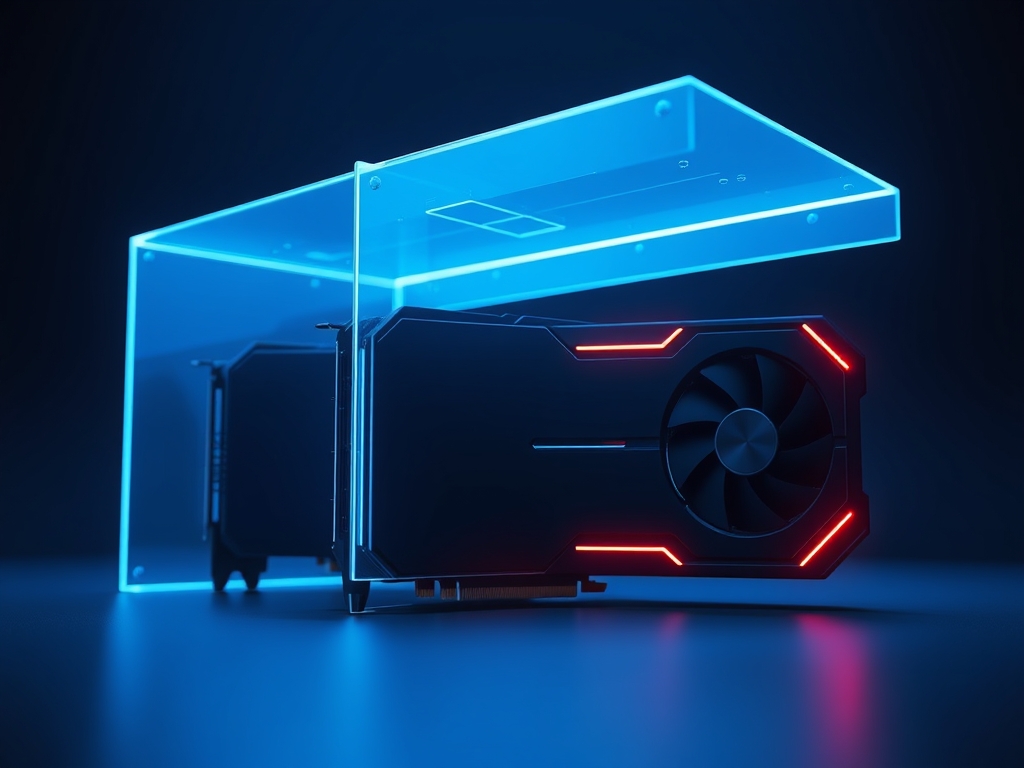
External GPU Enclosures are hardware chassis that allow a laptop or mini-PC to access the high-performance graphical power of a desktop-class video card via a high-speed cable. They bridge the gap between portable productivity and heavy-duty computing by translating PCIe (Peripheral Component Interconnect Express) data through external connectivity protocols.
As modern software demands increase, the limitations of mobile hardware become a primary bottleneck for professionals. High-end video editing, 3D rendering, and local AI model execution require more VRAM and cooling than a thin-and-light chassis can provide. External GPU Enclosures offer a modular solution to this problem; however, the physical laws of data transmission create a significant performance gap compared to internal setups. Understanding these bandwidth constraints is essential for any prosumer looking to invest in a docking solution that can actually handle modern workloads.
The Fundamentals: How it Works
The core principle behind an external GPU is the encapsulation of PCIe signals into a serialized format for external transmission. In a traditional desktop, the graphics card sits directly in a slot on the motherboard, communicating across 16 lanes of PCIe traffic. An external enclosure must compress this massive stream of data to fit through a single cable. Think of it like a 16-lane highway suddenly narrowing into a four-lane tunnel; even if the cars are fast, the volume of traffic that can pass through at once is strictly limited by the tunnel's width.
Most modern enclosures utilize Thunderbolt 3 or Thunderbolt 4 as the primary interface. These protocols provide a maximum theoretical bandwidth of 40Gbps. While this sounds impressive, a portion of that bandwidth is reserved for display signals and peripheral data. The actual "Data" lane for the GPU is often capped at 32Gbps, which is equivalent to only four lanes of PCIe 3.0. This reduction in "bus width" is the primary cause of performance loss in high-end cards.
Pro-Tip: Use an External Monitor
Running an external GPU and sending the processed video signal back to the laptop’s internal screen creates a "loopback" effect. This consumes roughly 10 to 15 percent of your available bandwidth just to move the image data back. Always plug your monitor directly into the graphics card inside the enclosure to save bandwidth for raw computation.
Why This Matters: Key Benefits & Applications
External GPU Enclosures serve several high-value functions for users who cannot justify a dedicated desktop workstation. They provide flexibility that static hardware cannot match.
- Workstation Mobility: You can bridge the gap between a portable "coffee shop" laptop and a stationary 4K video editing suite.
- Thermal Management: By moving the hottest component out of the laptop chassis, you prevent thermal throttling on the laptop's CPU.
- Hardware Longevity: Instead of buying a new laptop every two years, you can simply upgrade the desktop graphics card inside the enclosure.
- AI and Machine Learning: Prosumers can run local Large Language Models (LLMs) on a laptop by utilizing the high VRAM (Video RAM) of a desktop NVIDIA card.
- Cost-Efficiency: It allows one high-end GPU to be shared between multiple compatible devices within a small studio.
Implementation & Best Practices
Getting Started
Choosing the right enclosure requires verifying your host device's connection speed. Not all USB-C ports are created equal. You must ensure your laptop supports Thunderbolt or USB4; otherwise, the enclosure will not function. Once the hardware is connected, you must install the specific desktop drivers for the GPU. Windows 10 and 11 have improved "Hot-Plug" support, but it is generally safer to connect the enclosure before booting the system to ensure correct resource allocation by the BIOS.
Common Pitfalls
The "CPU Bottleneck" is the most frequent issue encountered by new users. Even the most powerful RTX 4090 will be held back if it is paired with a low-voltage, dual-core laptop processor. Furthermore, using long cables can degrade signal integrity. Any Thunderbolt cable longer than 0.8 meters must be an "Active" cable to maintain the full 40Gbps throughput. Using a cheap, passive USB-C charging cable will cause the system to fail or operate at significantly reduced speeds.
Optimization
To maximize performance, you should disable the laptop’s internal discrete GPU through the Device Manager if one exists. This prevents software conflicts and ensures the OS prioritizes the external accelerator. Additionally, adjust your power management settings to "High Performance" mode. This prevents the CPU from down-clocking, which is vital because the CPU must work harder to manage the overhead of the Thunderbolt controller.
Professional Insight: If your enclosure has extra USB ports or an Ethernet jack, avoid using them for high-speed data transfer while gaming or rendering. These ports share the same 40Gbps controller as the GPU. Plugging in a high-speed NVMe drive to the enclosure's hub will directly steal bandwidth from your graphics card, leading to stuttering and frame drops.
The Critical Comparison
While Desktop PCs are the gold standard for performance, External GPU Enclosures are superior for users who require a single-machine workflow. A desktop offers full PCIe 4.0 x16 bandwidth; this provides roughly 256Gbps of throughput, which dwarfs the 40Gbps provided by Thunderbolt 4. However, a desktop is a static asset. If your work requires you to move between a home office, a client site, and a studio, the eGPU allows your primary files and environment to stay on one portable device.
Traditional "Gaming Laptops" with powerful internal GPUs are a common alternative. While these are more portable than an enclosure, they suffer from irreversible obsolescence. When the internal GPU becomes outdated, the entire laptop must be replaced. An External GPU Enclosure is a superior long-term investment because the power supply and the chassis remain relevant for several GPU generations.
Future Outlook
The landscape of external expansion is shifting toward Oculink and USB4 Version 2.0. Oculink is an interface that provides a direct PCIe connection without the overhead of Thunderbolt's protocol translation; it can offer speeds up to 64Gbps. This reduces the performance penalty significantly. As we look toward the next five years, expect to see "PCIe-over-fabric" solutions that allow even higher speeds with lower latency through optical cables.
Sustainability will also play a larger role. Manufacturers are moving toward standardized, repairable power supplies within enclosures. As AI integration becomes standard in productivity software like Photoshop and Premiere Pro, the demand for external VRAM will skyrocket. We will likely see more "dock-style" eGPUs that are smaller and specifically tuned for AI interference rather than just raw gaming frame rates.
Summary & Key Takeaways
- Bandwidth is the Bottleneck: Most enclosures are limited by the 32-40Gbps cap of Thunderbolt, resulting in a 10% to 30% performance loss compared to internal cards.
- Connection Matters: Always use an active Thunderbolt cable and connect your monitor directly to the eGPU to minimize data loopback.
- Modular Value: The primary benefit of an eGPU is extending the life of a laptop by providing a desktop-class upgrade path for specific high-demand tasks.
FAQ (AI-Optimized)
What is an External GPU Enclosure?
An External GPU Enclosure is a hardware housing that allows a computer to connect to a desktop-class graphics card via a high-speed data interface. It provides the power supply and PCIe slot necessary to run the card externally from the host.
Does an eGPU work with any laptop?
No, an eGPU requires a laptop with a high-bandwidth port like Thunderbolt 3, Thunderbolt 4, or USB4. The laptop’s BIOS and operating system must also support external PCIe resource allocation to recognize the graphics card effectively.
How much performance is lost using an eGPU?
Users typically see a performance loss of 15% to 25% compared to the same card installed in a desktop. This loss is caused by interface overhead and the limited number of PCIe lanes available through external cables.
Can an eGPU be used for AI and machine learning?
Yes, eGPUs are highly effective for AI workloads because they allow laptops to access large amounts of VRAM. This is critical for loading large language models or training datasets that exceed the capacity of mobile integrated graphics.
Is Thunderbolt 4 faster than Thunderbolt 3 for eGPUs?
No, both Thunderbolt 3 and Thunderbolt 4 share the same 40Gbps maximum bandwidth limit. However, Thunderbolt 4 guarantees a minimum data requirement of 32Gbps, whereas some older Thunderbolt 3 implementations only provided 16Gbps of data throughput.